Operations and AI analysis · Free to install

Operations you host. An AI team you direct.

Small business operations system (Sales, Distribution and Inventory Management System) and an AI assistant run on your machine. Connect your subscribed language models or multi-model aggregators — not as an unsupervised single model, but as a structured pipeline: a team of workers you brief, with only the data you choose to send.

01 — Idea

How the golivingbest Architecture Works

The golivingbest family spans analysis and operations: glb_ai with glb_ai_web; and glb_ops, a sales, distribution and inventory management system, with glb_ops_client for operators and glb_ops_mobile for wholesale customers. The family is free to install and use without limitation. glb_ai and glb_ops are open source under the MIT License. glb_ai_web, glb_ops_client, and glb_ops_mobile are proprietary (source not open) but free to install.

glb_ai is an AI assistant you configure through the glb_ai_web console. It pulls data in through a SCREENER plugin, runs analysis in a structured pipeline (workers you brief, with an orchestrator that makes the final call), then pushes results out through a TRACKER plugin. The SCREENER can extract from any source you plug in — open APIs, databases, market feeds, legacy systems. The TRACKER can send results to any destination the same way. Models never touch your databases directly; only the plugin decides what leaves and what returns. Any developer is free to build a custom SCREENER or TRACKER by following the plugin development standard.

glb_ops is a sales, distribution and inventory management system for SMEs — not a complete ERP. It covers retail POS, wholesale distribution, and inventory. It has its own AI assistant for tasks such as visual recognition on purchase documents. That capability lives inside glb_ops.

Because they belong to the golivingbest family, we also ship a ready SCREENER plugin so glb_ai can optionally extract data from glb_ops into a workspace for analysis.

golivingbest Family Architecture & Execution Graph Curved Bubble Network
Controlled AI Pipeline
golivingbest AI PIPELINE (AI WORKING TEAM) Sales Order Portal (HTTP) POS / Inventory Ops (HTTP) EventCallback / HTTP Trigger Extraction DTO Raw Data Slices Open APIs / Ext DB Feeds Sanitized Payload Filtered Context DTO Prompt Context (HTTP) AI Inference Stream JUDGE_VERDICT 1 JUDGE_VERDICT 2 Live SSE State Stream Synthesized Verdict Action Dispatch / Webhook glb_ops Operator glb_ops_client (WPF Desktop) glb_ai Web Operator glb_ai_web (Browser Console) Wholesale Customer glb_ops_mobile (Browser / Mobile) glb_ai_web UI Service Blazor SSR / SSE glb_ops Operations glb_ops Backend & DB Internal Business Systems & POS Other Data Systems Public Open APIs / DB connection... Market Feeds, Weather, Legacy Systems SCREENER glb_ai Plugin Input Data Extractor AI Worker 1 Workspace A Gen → Rev → Judge AI Worker 2 Workspace B Gen → Rev → Judge Orchestrator AI Team Leader Final Decision Engine Language Models Subscribed Multi-Model APIs Prompt Context Only (Zero DB) TRACKER glb_ai Plugin Output Action Dispatcher Destination Systems glb_ops Actions & DB External Target Systems & Webhooks Executive Audit Logs & Reports Users & Operators (WPF / Web) Internal Processes & Workspaces (C# / Handlers) External Entities & Data Stores (DBs, LLMs)

SCREENER: any source, by plugin

In glb_ai, models never open your databases. A SCREENER plugin is the controlled bridge — it extracts only the data slices you allow from whatever source you connect: APIs, databases, feeds, or other business systems.
A workspace is a worker

Each workspace runs a linear job: GENERATOR drafts, REVIEWER checks, JUDGE settles conflict. Several workers form a pipeline. The orchestrator is the team leader who makes the last call.

TRACKER: any destination

Plugins are not one-way. A TRACKER takes the team’s verified response and dispatches it to the destination you choose — another system, a webhook, a report store, or an operational action endpoint.

02 — Models

The golivingbest family

The golivingbest family is free to install and use. glb_ai and glb_ops are open source (MIT). glb_ai_web, glb_ops_client, and glb_ops_mobile are proprietary but free to install.

Recommended

golivingbest_suite

The one-touch evaluation pack: glb_ops API and demo database, glb_ai, and the glb_ai_web UI. You host the stack, connecting your chosen language models or model aggregator when a pipeline runs.

Use when you want operations and the analysis team running together on one machine.

Operations

glb_ops

A lightweight business operations backend for SMEs: point of sale, wholesale distribution, and inventory. It is a skeleton to build on — not a giant licence of which you will use half. Visual recognition speeds data entry; further AI assistants can be added on request. Interested in a fit for your entity? Ask about customisation.

Use when you need day-to-day sales, distribution, and inventory operations with glb_ops — without buying a heavy, oversized commercial software package.

Windows

glb_ops_client

The Windows desktop client for glb_ops: POS, wholesale, and stock work on the operator’s machine. It talks to the glb_ops API only — never to PostgreSQL, and never to an AI model directly.

Use when staff need a desktop console for daily operations.

Mobile

glb_ops_mobile

A client portal for wholesale customers to place sales orders from a desktop browser or mobile device. Operators fulfil those orders on the glb_ops backend. Customers follow each order through Preparing, Picking, Delivering, and Delivered, and can review their fulfilled order history. Like glb_ai_web, glb_ops_mobile is free to use with no licence fee; the source is not open.

Use when wholesale customers need self-service ordering and order-status visibility.

Analysis

glb_ai

The control layer between your data and the models. You decide what a SCREENER plugin may extract. You write the prompts. A workspace (a worker) runs GENERATOR → REVIEWER → JUDGE. A pipeline is a team of those workers; the orchestrator delivers the final judgement. SCREENER and TRACKER are source- and destination-agnostic: any system can feed data in, and any system can receive TRACKER output.

Use when you need analysis without giving a model unsupervised access to the database.

Web

glb_ai_web

The browser console for glb_ai: configure workspaces, run pipelines, and read the team’s verdicts. Operators brief the workers here; they do not open the database to the models.

Use when you want to run and inspect the analysis team in a browser.

03 — Install

Download, configure, start.

We package the evaluation suite with Docker so Postgres, glb_ops, glb_ai, and the web UI start together on one machine — fewer host dependencies and a repeatable demo. If you want a non-Docker install with source for glb_ai and glb_ops, a compiled glb_ai_web binary, and the PostgreSQL demo database, contact us. After the API is running, install the Windows desktop client.

golivingbest_suite — Linux / macOS

Installation flow Linux / macOS
  1. Install & start Docker Docker Desktop on macOS, or Docker Engine + Compose on Linux.
  2. Prepare your LLM settings Have LLM_BASE_URL and LLM_API_KEY ready — needed for the AI assistant and operations system.
  3. Download the evaluation suite From Downloads, get Complete evaluation suite (Docker)glb-suite-eval-1.0.0.zip.
  4. Unzip and run the installer Unzip into a folder where you want to run the suite (not Downloads), open golivingbest-suite-eval-1.0.0, then run ./install.sh.
  5. Answer the installer prompts Database password, LLM base URL, API key, and model name (Enter accepts defaults).
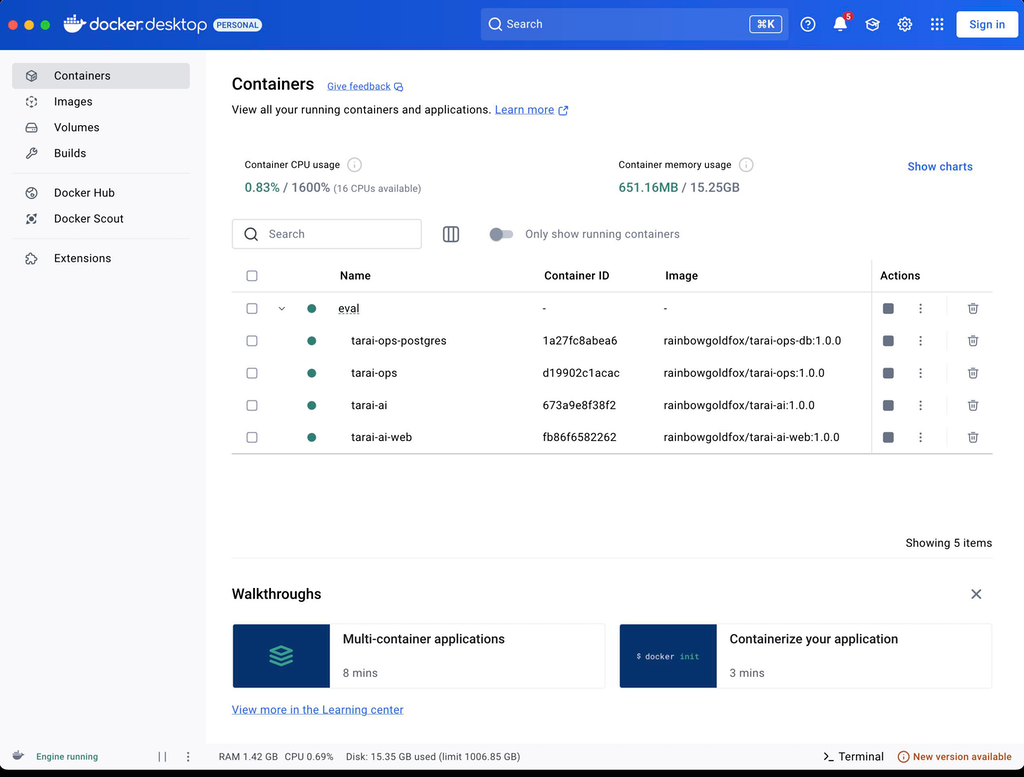
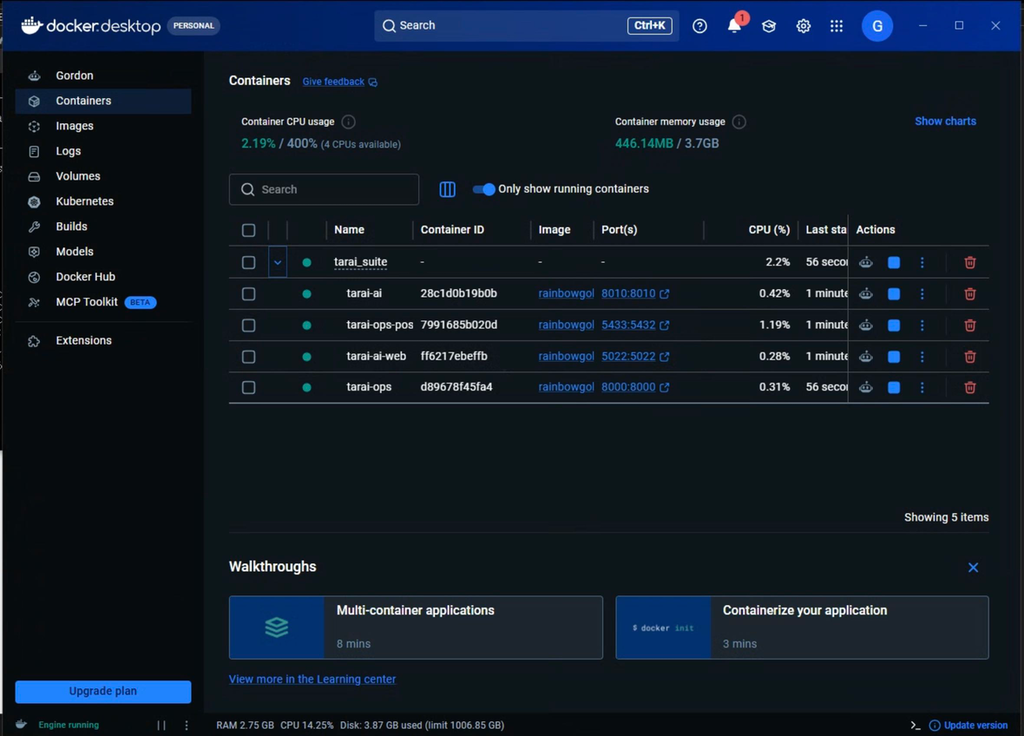
  6. Containers running — open the apps Web UI :5022, AI API :8010, ops API :8000, Postgres :5433. Later edit .env in the suite folder you chose (same folder as the installer) to change LLM settings.
  7. Open glb_ai_web and sign in In Docker Desktop, double-click the published port for golivingbest_ai_web to launch glb_ai_web. Sign in with the demo account — user PK0003, password demo.
Docker Desktop on macOS after a successful golivingbest_suite install
Docker Desktop after a successful install — containers for Postgres, glb_ops, glb_ai, and the web UI.
# 1) Install Docker on your local PC or server
#    - macOS: Docker Desktop
#    - Linux: Docker Engine + Compose v2
#    Start Docker, then check:
$ docker info

# 2) Prepare LLM_BASE_URL and LLM_API_KEY
#    Needed for the AI assistant and golivingbest operations system.

# 3) Download the suite zip from this site (Downloads)
#    Choose “Complete evaluation suite (Docker)”
#    file: glb-suite-eval-1.0.0.zip
#    Unzip into a folder where you want to run the suite
#    (do not leave it only in Downloads)
$ mkdir -p ~/golivingbest
$ unzip glb-suite-eval-1.0.0.zip -d ~/golivingbest
$ cd ~/golivingbest/golivingbest-suite-eval-1.0.0

# 4) Run the installer
$ chmod +x install.sh
$ ./install.sh

# 5) Installer prompts (press Enter to accept defaults)
License: see LICENSE in this folder.
By continuing, you agree to those terms.
Press Enter to continue...
1. Database password for 'dgstar' [...]: dgstar
2. LLM_BASE_URL [...]: https://api.poe.com/v1
3. LLM_API_KEY (optional)...
4. LLM_MODEL_NAME [...]: gemini-3.1-flash-lite

# 6) Containers start — open when ready
glb_ops API: http://localhost:8000/docs
golivingbest AI:      http://localhost:8010/docs
Web UI:        http://localhost:5022/
Postgres DB:   localhost:5433

# 7) Later: change LLM provider / key / model
#    Edit .env in the suite folder where you unzipped:
#    e.g. ~/golivingbest/golivingbest-suite-eval-1.0.0/.env
#    (same folder as install.sh and docker-compose.yml)
$ cd ~/golivingbest/golivingbest-suite-eval-1.0.0
$ nano .env
#    set LLM_API_KEY, LLM_BASE_URL, LLM_MODEL_NAME
$ docker compose up -d

golivingbest_suite — Windows

Installation flow Windows
  1. Install & start Docker Docker Desktop on Windows (or Docker Engine on Windows Server).
  2. Prepare your LLM settings Have LLM_BASE_URL and LLM_API_KEY ready — needed for the AI assistant and operations system.
  3. Download the evaluation suite From Downloads, get Complete evaluation suite (Docker)glb-suite-eval-1.0.0.zip.
  4. Unzip and run the installer Unzip into a folder where you want to run the suite (not Downloads), open golivingbest-suite-eval-1.0.0, then run install.bat.
  5. Answer the installer prompts Database password, LLM base URL, API key, and model name (Enter accepts defaults).
  6. Containers running — open the apps Web UI :5022, AI API :8010, ops API :8000, Postgres :5433. Later edit .env in the suite folder you chose (same folder as the installer) to change LLM settings.
  7. Open glb_ai_web and sign in In Docker Desktop, double-click the published port for golivingbest_ai_web to launch glb_ai_web. Sign in with the demo account — user PK0003, password demo.
Docker Desktop on Windows after a successful golivingbest_suite install
Docker Desktop after a successful install — containers for Postgres, glb_ops, glb_ai, and the web UI.
REM 1) Install Docker on your local PC or server
REM    - Windows / Windows Server: Docker Desktop (or Engine)
REM    Start Docker Desktop, then check in Command Prompt or PowerShell:
C:\> docker info

REM 2) Prepare LLM_BASE_URL and LLM_API_KEY
REM    Needed for the AI assistant and golivingbest operations system.

REM 3) Download the suite zip from this site (Downloads)
REM    Choose “Complete evaluation suite (Docker)”
REM    file: glb-suite-eval-1.0.0.zip
REM    Unzip into a folder where you want to run the suite
REM    (do not leave it only in Downloads)
REM    Example destination: C:\golivingbest\golivingbest-suite-eval-1.0.0
REM    Use File Explorer, 7-Zip, WinRAR, etc. to extract there.
C:\> cd C:\golivingbest\golivingbest-suite-eval-1.0.0

REM 4) Run the Windows installer
C:\golivingbest\golivingbest-suite-eval-1.0.0> install.bat

REM 5) Installer prompts (press Enter to accept defaults)
License: see LICENSE in this folder.
By continuing, you agree to those terms.
Press Enter to continue...
1. Database password for 'dgstar' [...]: dgstar
2. LLM_BASE_URL [...]: https://api.poe.com/v1
3. LLM_API_KEY (optional)...
4. LLM_MODEL_NAME [...]: gemini-3.1-flash-lite

REM 6) Containers start — open when ready
glb_ops API: http://localhost:8000/docs
golivingbest AI:      http://localhost:8010/docs
Web UI:        http://localhost:5022/
Postgres DB:   localhost:5433

REM 7) Later: change LLM provider / key / model
REM    Edit .env in the suite folder where you unzipped:
REM    e.g. C:\golivingbest\golivingbest-suite-eval-1.0.0\.env
REM    (same folder as install.bat and docker-compose.yml)
C:\> cd C:\golivingbest\golivingbest-suite-eval-1.0.0
C:\golivingbest\golivingbest-suite-eval-1.0.0> notepad .env
REM    set LLM_API_KEY, LLM_BASE_URL, LLM_MODEL_NAME
C:\golivingbest\golivingbest-suite-eval-1.0.0> docker compose up -d

glb_ops_client — Windows

Desktop client install flow Windows
  1. Start the glb_ops API first Install and run golivingbest_suite (Docker) so the ops API is available — usually http://localhost:8000/.
  2. Download the client installer zip From Downloads, get glb_ops Windows desktop clientglb_ops_client_installer.zip.
  3. Unzip and run the installer Extract to a folder you choose (not only Downloads), open glb_ops_client_installer, then run glb_ops_client_installer.exe.
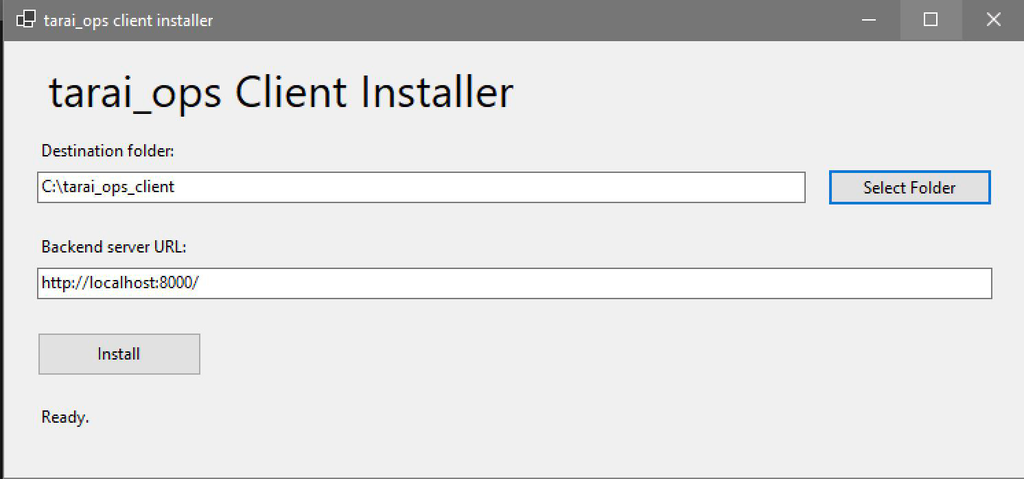
  4. Choose destination and backend URL Pick the Destination folder. Keep http://localhost:8000/ if Docker is on this PC, or enter another machine’s IP (e.g. http://192.168.1.69:8000/). Click Install.
  5. Optional: edit DGStarAppSettings.json In the installed Destination folder, adjust database name / credentials and apiservices.apibaseurl if needed.
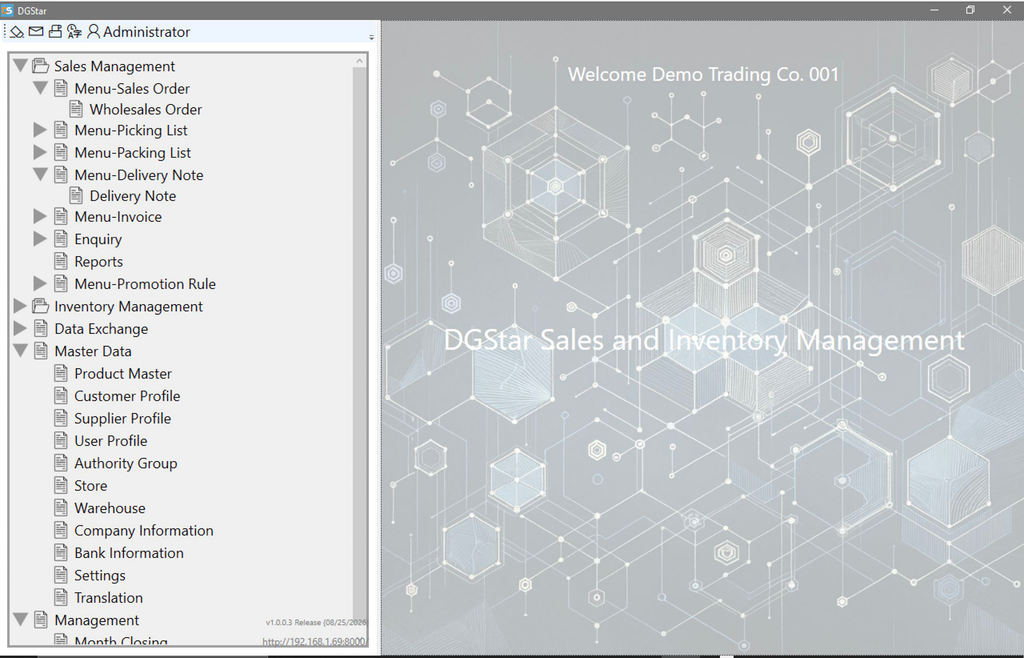
  6. Start the desktop client From the Destination folder, run DGStar.exe.
  7. Start Docker as administrator and sign in Before you open glb_ops_client, start the Docker containers with Run as administrator. Then sign in with user PK0003 and password demo.
glb_ops_client installer window
Installer — Destination folder and glb_ops backend URL.
glb_ops_client running on Windows
After install — run DGStar.exe to open the desktop client.
REM Prerequisite: glb_ops API already running (from golivingbest_suite above)

REM 1) Download glb_ops_client installer zip from this site (Downloads)
REM    Choose “glb_ops Windows desktop client”
REM    file: glb_ops_client_installer.zip

REM 2) Unzip to a folder where you want to keep the installer pack
REM    (do not leave it only in Downloads)
REM    Example: C:\glb_ops_client\
REM    Use File Explorer, 7-Zip, WinRAR, etc.
C:\> cd C:\glb_ops_client\glb_ops_client_installer

REM 3) Run the installer (double-click in Explorer, or:)
C:\glb_ops_client\glb_ops_client_installer> glb_ops_client_installer.exe

REM 4) In the installer window:
REM    - Choose the Destination folder for glb_ops_client
REM    - Edit the glb_ops backend URL
REM      Keep http://localhost:8000/ if Docker suite is on this PC
REM      Or use the other machine’s IP, e.g. http://192.168.1.69:8000/
REM    - Click Install

REM 5) Optional later: edit client settings (database + API)
REM    In the installed Destination folder, open DGStarAppSettings.json
C:\Program Files\glb_ops_client> notepad DGStarAppSettings.json

REM Example DGStarAppSettings.json:
{
  "DatabaseConnection": {
    "DatabaseName": "dgstar_demo",
    "Username": "dgstar",
    "Password": "dgstar"
  },
  "apiservices": {
    "apibaseurl": "http://localhost:8000/"
  }
}

REM 6) Start the desktop client from the install Destination folder
C:\Program Files\glb_ops_client> DGStar.exe

Get the mobile app

Scan to open on your phone PWA

Scan this QR code to open glb_ops_mobile. Download or print the image for a counter or warehouse sign. On the login page, sign in with the demo account — user PK0003, password demo — then use Install to add the app to your home screen.

QR code linking to order.golivingbest.com

Open https://order.golivingbest.com

Android installation flow Android
  1. Open the portal Scan the QR code tab, or open https://order.golivingbest.com in Chrome.
  2. Wait for the login page The wholesale customer login screen should appear. Sign in with the demo account — user PK0003, password demo.
  3. Tap Install Tap the Install button at the top of the login page.
  4. Confirm install Accept Chrome’s install prompt to add the app to your home screen.
  5. Launch from Home Open the home-screen icon. The Install button is hidden when you run the installed app.
iPhone installation flow iPhone
  1. Open in your favorite browser Scan the QR code tab, or open https://order.golivingbest.com in your favorite browser on iPhone. On the login page, sign in with the demo account — user PK0003, password demo.
  2. Open Share Tap the menu icon at the bottom of the browser, then tap the Share icon.
  3. Add to Home Screen Tap More at the bottom of the share sheet if needed, then tap Add to Home Screen.
  4. Confirm Tap Add to place the app icon on your home screen.
  5. Launch from Home Open the home-screen icon. If you open the site again in a browser, Install shows short Add to Home Screen guidance.

04 — Demos

Step through each procedure.

Browse operation walkthroughs for glb_ops, glb_ops_mobile, and glb_ai. Open a row to step through screen snapshots — one image at a time.

glb_ops

glb_ops_mobile

glb_ai

05 — Downloads

Get the files.

Buttons will point at the suite zip and the WPF installer. Large files stay on the VPS.

06 — About us

Our vision.

AI is changing how software is built — with less time, lower cost, and fewer errors. We believe the era of the oversized software package is ending, and a new era of customized software is taking shape.

You should pay only for what you need — not a large licence when you use only a fraction of its features. With AI, tailored software can be built quickly and affordably. What developers bring is business knowledge and experience.

The golivingbest family was built with the help of AI, and it is designed to be shaped around your requirements. How far it can go for you is limited only by your imagination.

If you use the golivingbest family without customization or consultancy, it is completely free — and you may use it anywhere. We charge only for customization and on-demand consultancy — no licence fee, yearly or otherwise.

glb_ai and glb_ops are open source under the MIT License. glb_ai_web, glb_ops_client, and glb_ops_mobile are proprietary (source not open) but free to install. Language models are engaged as a structured team that you brief and direct — they never open the database themselves.

07 — Contact

Send an enquiry.

Ask about glb_ops customisation, extra AI assistants, or production deployment. We will reply by email.

glb_ops is a Windows desktop application and does not run in the browser. Open Downloads and choose “glb_ops Windows desktop client” to get the installer.